Android pop-up troubleshooting
How to Find Which App Is Causing Pop-up Ads on Android
To find which app is causing pop-up ads, first identify the kind of pop-up. On your phone, touch and hold a notification to check its sender; a website alert needs that site’s browser permission checked. For a separate full-screen window, inspect its owner while it is visible. Chrome or Google Play may be the destination of a redirect, so their presence alone does not identify the app that opened it.
Start with where the ad appears
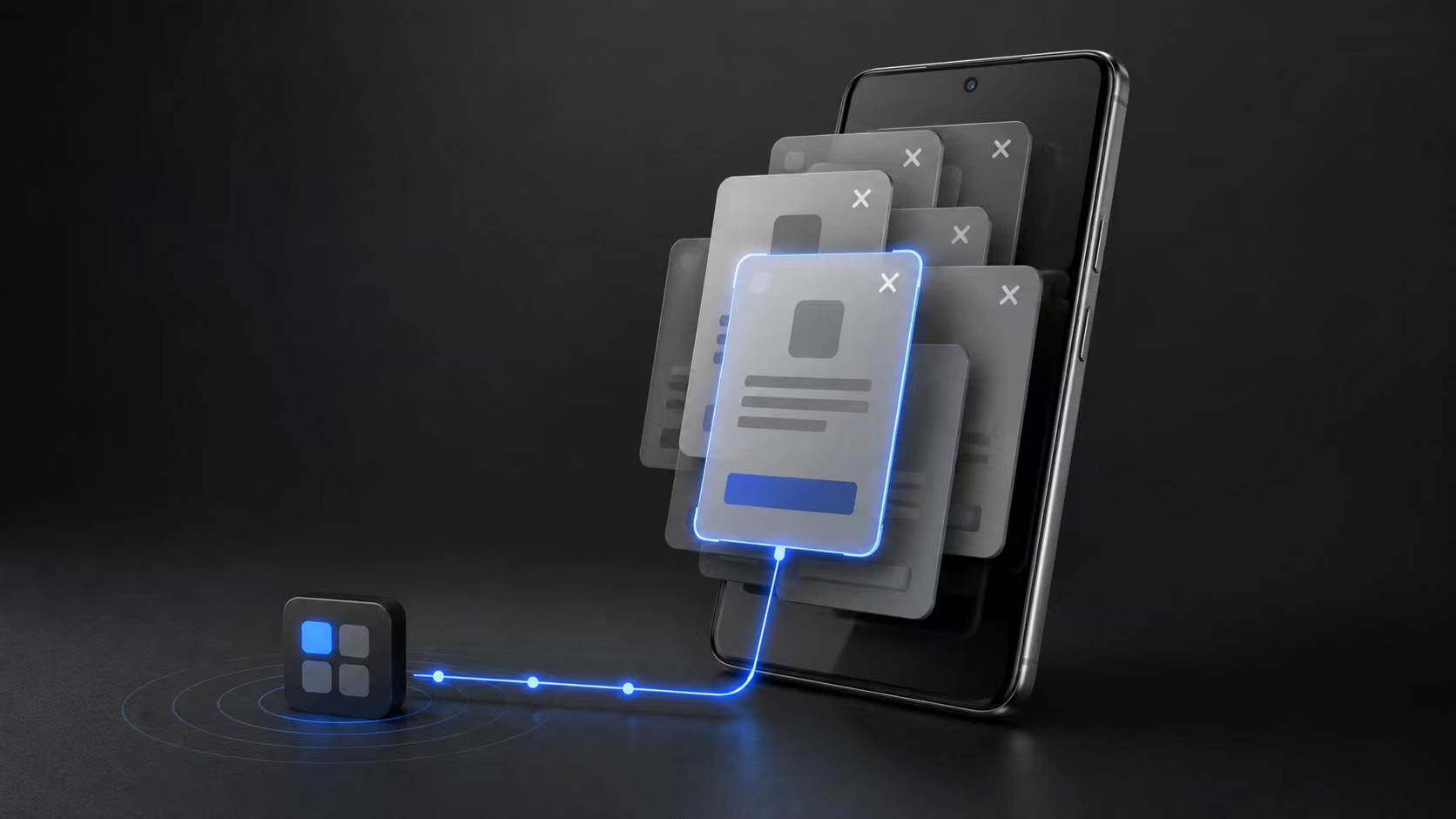
The same complaint—ads keep popping up on my phone—can describe several different problems. If an ad appears only inside one app while you use it, check that app's settings or consider an alternative. If it appears over the home screen, interrupts other apps or opens a browser without an obvious action, investigate the source before assuming the phone itself is infected.
A notification in the notification shade
Touch and hold the notification to see which app sent it and review its notification settings. If Chrome sent a website notification, check the site's permission in Chrome. The browser is delivering that notification; it does not necessarily mean another installed app is responsible. Turning off the relevant site's notifications is more targeted than uninstalling unrelated apps.
An unexpected full-screen window or home-screen ad
Open Android's recent-apps view if it is safe to do so and look for a recognizable app. Some windows do not leave an obvious card, so an empty or unfamiliar recent-apps view is not enough to identify the source. If you plan to inspect the current window with PopTrace, reproduce the ad after checking recent apps so the inspection captures the relevant screen.
Check the source in five steps
- 1
Write down the trigger and recent changes
Note whether the ad appears after unlocking, returning home or opening another app. Review recently installed or updated apps in Android Settings. A recent installation is a lead, not proof: do not remove an app only because its name is unfamiliar. Keep a short record of changes so you can tell which action actually stopped the problem.
- 2
Prepare a trusted computer if the source is still unclear
PopTrace Web needs desktop Chrome or Edge, an Android phone and a USB data cable. Enable developer options and USB debugging, connect the phone, and approve the computer on the phone. Use a computer you trust. No root or PopTrace Android installation is required for the web diagnostic workflow. If you do not have a computer, continue with the manual notification and safe-mode checks below.
Enable developer options Connect your phone while the pop-up is visible - 3
Inspect while the pop-up is visible
After connecting, reproduce the unwanted window and start a check in PopTrace. Review the phone screenshot alongside the current-window app. If the ad has already closed or you have opened several other screens, reproduce it and check again. Avoid tapping an ad's download or install prompts just to reproduce a redirect.
Start scanning - 4
Separate the window owner from earlier candidates
The current-window app owns the screen captured in that check. Earlier candidate apps may have been active before it appeared. If the result shows Chrome or Google Play, that can describe the destination of a link rather than its initiator. Compare the timing and repeat the check when possible; a candidate's recent activity does not prove that it caused the ad.
- 5
Verify a suspect before removing it
Review the app's name and details. You can try force stopping an app you recognize as a plausible source, then repeat the original trigger. If the ads stop, that is useful evidence, though intermittent ads may require longer observation. If you decide to uninstall, Android asks for confirmation on the phone. Uninstalling may remove local app data, so check anything you need to keep first.
Read the evidence before choosing an app
Current window: match it to the pop-up
Check that the captured screen is the unwanted window you saw. The named app owns that window. If it is Chrome or Google Play, that identifies the destination; it does not identify which app opened the link. If the capture shows a different screen, repeat the check while the pop-up is visible.
Earlier activity: candidates to investigate
Compare the package names and times with the original trigger. A candidate may have been active for an unrelated reason, and the true sender may be missing. Do not treat the first candidate, an unfamiliar icon or an advertising SDK as a verdict.
Keep a short record and change one thing
Record your phone model, Android version, trigger, capture time, current-window package, earlier candidates and the one setting or app you changed. Repeat the same trigger and note whether the same window returns. Keep the record locally; an intermittent ad disappearing once is not enough to confirm its source.
What a pop-up ad detector can and cannot tell you
PopTrace shows local window-ownership and activity evidence. You decide whether the screen is an unwanted advertisement. It does not classify every ad, prove an app is malicious or guarantee that a redirect's original sender is present in the available records. Phone manufacturers and Android versions expose different amounts of useful history. An incomplete result means the source remains uncertain, not that every installed app is safe.
PopTrace processes screenshots, installed-app information and diagnostic output locally in your browser. Standard mode uses still screenshots; live view and control are a separate opt-in mode. Once you have finished, disconnect and turn USB debugging off if you no longer need it. The tool is for source investigation, so browser notification settings and manufacturer-specific lock-screen settings still matter.
PrivacyQuestions about finding the responsible app
What if the app does not show up in recent apps?
Do not guess from the missing card. Reproduce the window and inspect it while it is visible, or use the manufacturer's safe-mode procedure to check whether downloaded apps are involved. Google recommends checking recently downloaded apps one at a time and testing after each removal. Safe mode can narrow the cause; it does not name the responsible app by itself.
Why do ads appear when no apps are open?
Not opening an app yourself does not mean no app is active. Notifications, lock-screen features and other app activity may still appear. Start with the visible form of the ad and follow the corresponding check. A full-screen ad and a browser notification need different investigations.
Can I find the source without a computer?
Yes, start by checking notification senders, recent apps and recently installed apps on the phone. Follow your manufacturer's safe-mode instructions if needed. PopTrace's web window inspection requires a computer; it cannot read Android window records from a normal mobile browser.
Sources and further help
The manual checks in this guide follow Google and Samsung support guidance. Menu names vary by Android version and manufacturer; use your phone maker's instructions when a setting differs.