About 2 minutes
Enable Android Developer Options and USB Debugging
Learn how to enable Android developer options and USB debugging, approve your computer, and turn debugging off after checking pop-up ads with PopTrace.
Android phone
Before connecting
Not for the web version. Enable USB debugging in Android developer options and approve this computer when the phone asks.
-
1
Enable developer options
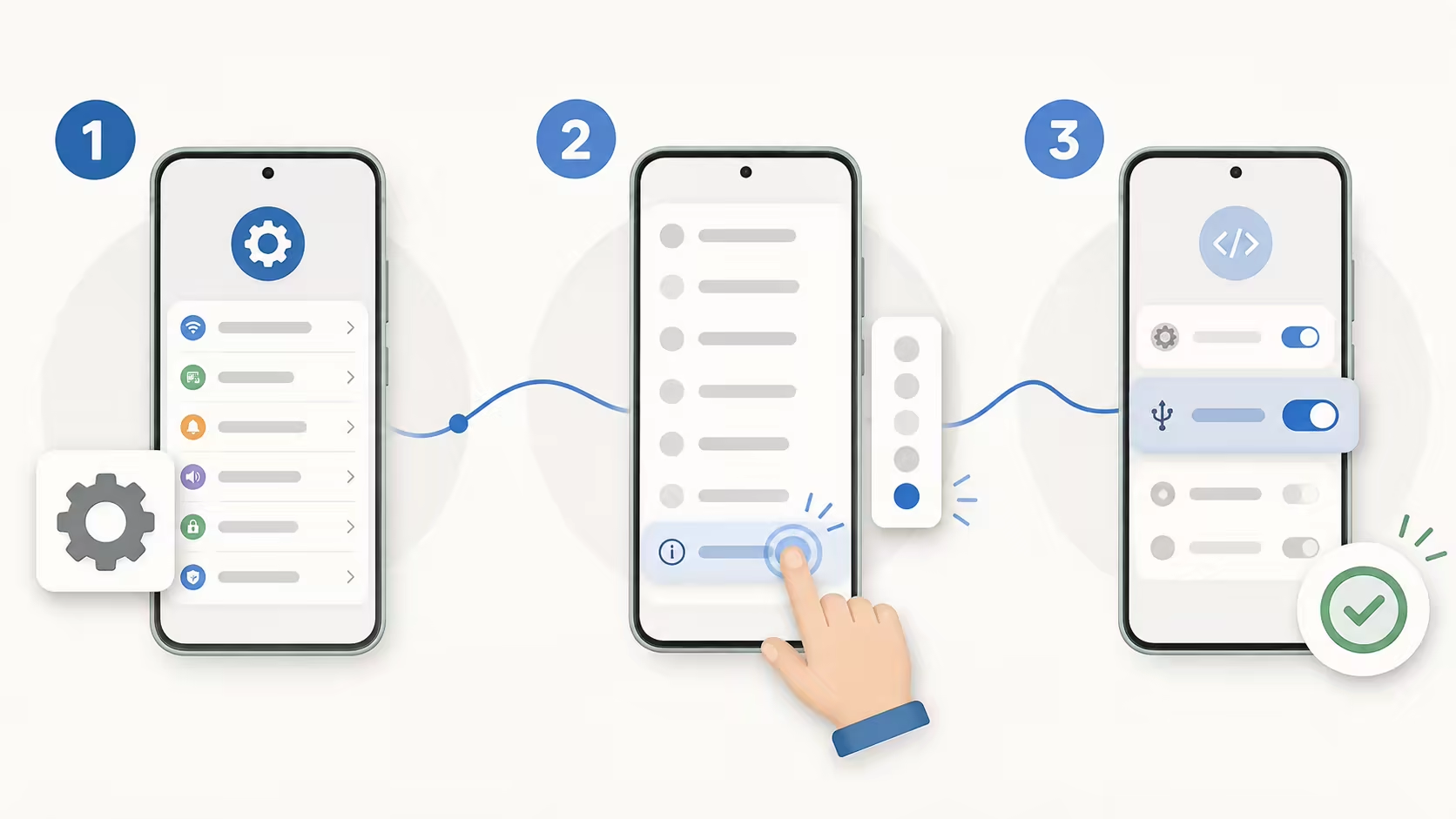
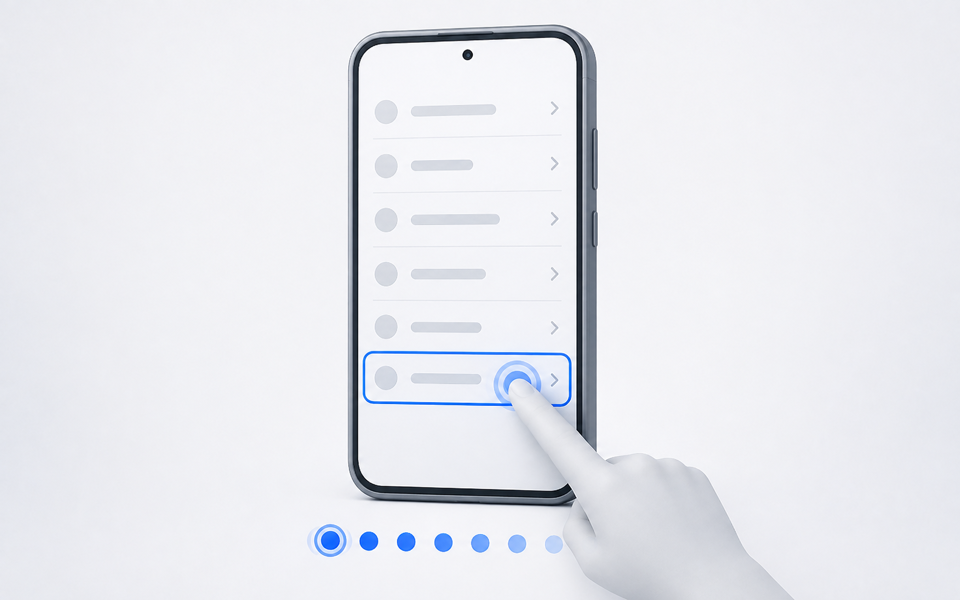
Open Settings → About phone, find Build number, and tap it 7 times. It may be under Software information, Version, or All specs. Enter your screen-lock code if asked.
-
2
Enable USB debugging
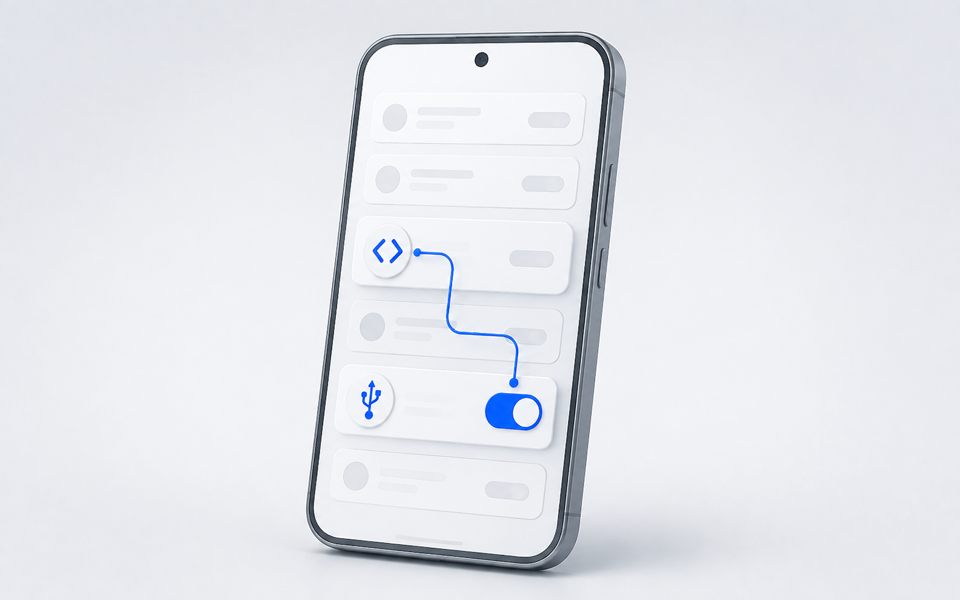
USB debugging lets the browser read your phone screen and app information over the cable. In Settings, search for Developer options and enable USB debugging. It may also be under System or Additional settings.
-
3
Approve the phone prompt
Keep your phone unlocked, connect a data-capable cable, then press Connect. Allow USB debugging only on a computer you trust. When finished, disconnect here, then turn off USB debugging and revoke USB debugging authorizations in Developer options.
Connect Android phone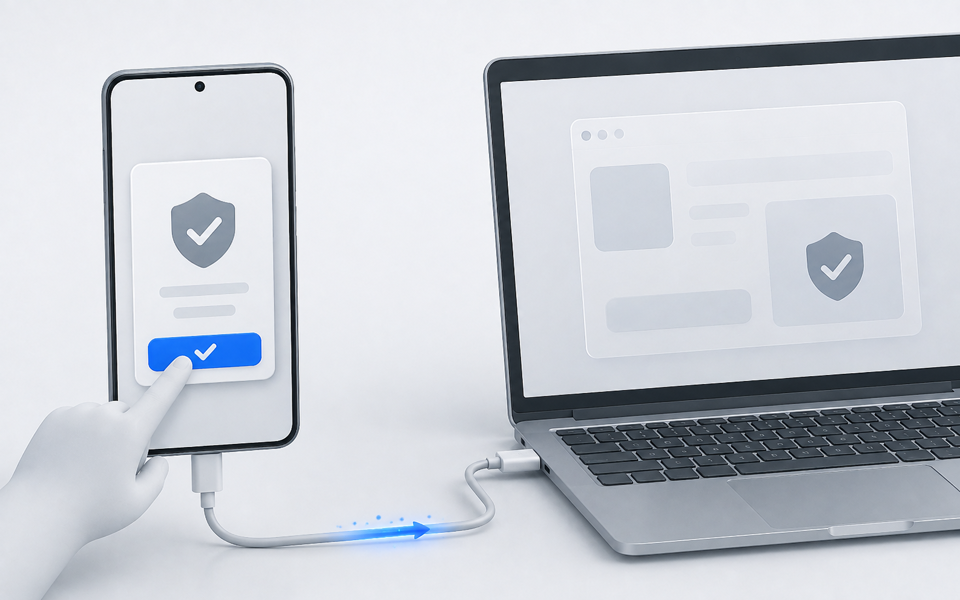


Enable developer options
Find the right path for your phone
Menu names change with Android versions and regions. First search Settings for “Build number” or “Developer options”; if nothing appears, follow the closest path below.
-
Google Pixel
Open Settings → About phone → Build number. Tap Build number 7 times, enter your screen lock, then go to Settings → System → Developer options.
-
Samsung Galaxy
Open Settings → About phone → Software information → Build number. Tap it 7 times, then return to Settings; Developer options appears near the bottom.
-
Xiaomi / Redmi
Open Settings → About phone → Detailed info and specs (or All specs), then tap OS version or MIUI version 7 times. Next open Settings → Additional settings → Developer options.
-
OPPO / OnePlus / realme
Open Settings → About device → Version, then tap Version number or Build number 7 times. Developer options is usually under System settings or Additional settings.
-
vivo / iQOO
Open Settings → System management → About phone → Software information, then tap Build number or Software version 7 times. Return to System management to find Developer options.
-
Huawei / Honor
Open Settings → About phone → Build number and tap it 7 times. Then go to Settings → System & updates → Developer options; some Honor versions call this System and updates.
Check again
When the seven-tap method does not work
Use these checks when the standard flow fails. A work, school, retail, or family-managed phone may intentionally block developer settings.
I cannot find or tap Build number
Open Software information, Version, or Detailed info and specs under About phone. Search Settings for “Build number”, “OS version”, or “MIUI version”, and make sure you are using the device owner profile. Do not tap Android version.
The phone says this setting is disabled
A work profile, device administrator, Family Link, retail demo mode, or company policy can hide or lock developer controls. Do not try to bypass the policy; ask the administrator or use a personal device you control.
Developer options is on, but USB debugging is unavailable
Turn on the main Developer options switch, then search Settings for “USB debugging”. If the control is locked, check Auto Blocker, security settings, or device-management policy. If it is on but no authorization prompt appears, choose Revoke USB debugging authorizations, reconnect the unlocked phone with a data cable, select File transfer, and approve the new prompt.
Related guides
How to Find Which App Is Causing Pop-up Ads on Android
Find which Android app is showing pop-up ads. Check notifications, recent apps and window ownership, then verify the source before removing anything.
Find Hidden Adware on Android: Apps and Permissions
Investigate Android apps behind pop-up ads, check display-over-other-apps settings, and understand blocked uninstall controls with PopTrace and manual checks.
Privacy and control
Device data stays local, and every action starts with you
The page connects directly to the phone you select and parses diagnostics in the browser. PopTrace requires no account and does not upload app lists, window records, device identifiers, or results.
- USB access is requested only after you press the connect button
- Phone actions run only after you press their buttons; force stop also asks for confirmation on the page
- Uninstalling must be confirmed again in Android's system screen