Solve it first, learn the details later
Connect Android to a Computer via USB for PopTrace
Connect your Android phone to desktop Chrome or Edge over USB. Follow the authorization steps and troubleshoot missing devices or failed connections.
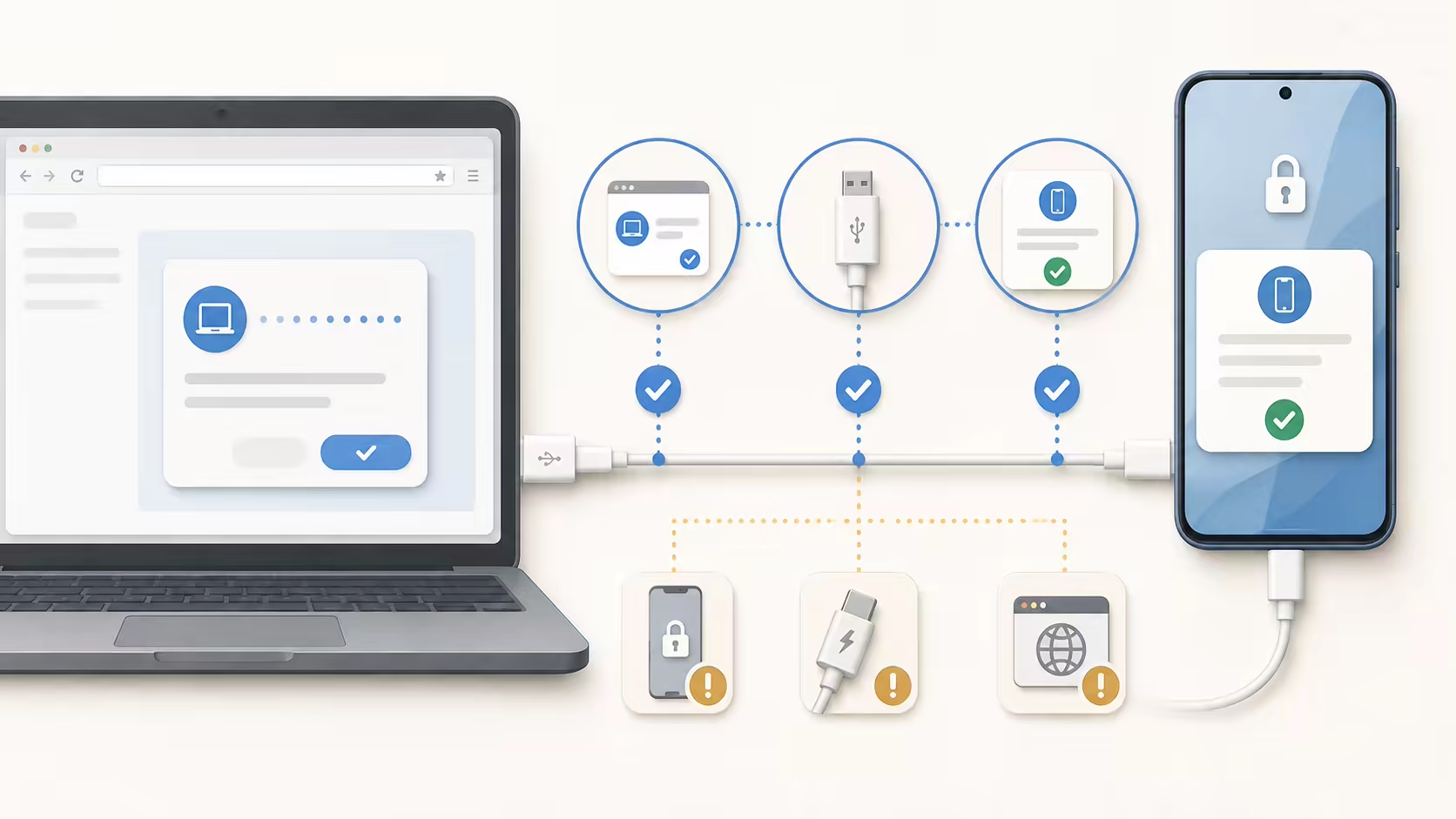
Browser connection requirements
Recommended action
Open PopTrace in a standalone desktop Chrome or Edge tab over HTTPS or localhost.
-
01
Android phone Keep the abnormal page in front
-
02
USB data cable Must support data transfer
-
03
Chrome or Edge Use the desktop browser
About 2 minutes
Before connecting
Not for the web version. Enable USB debugging in Android developer options and approve this computer when the phone asks.
-
1
Enable developer options
Open Settings → About phone, find Build number, and tap it 7 times. It may be under Software information, Version, or All specs. Enter your screen-lock code if asked.
Enable developer options -
2
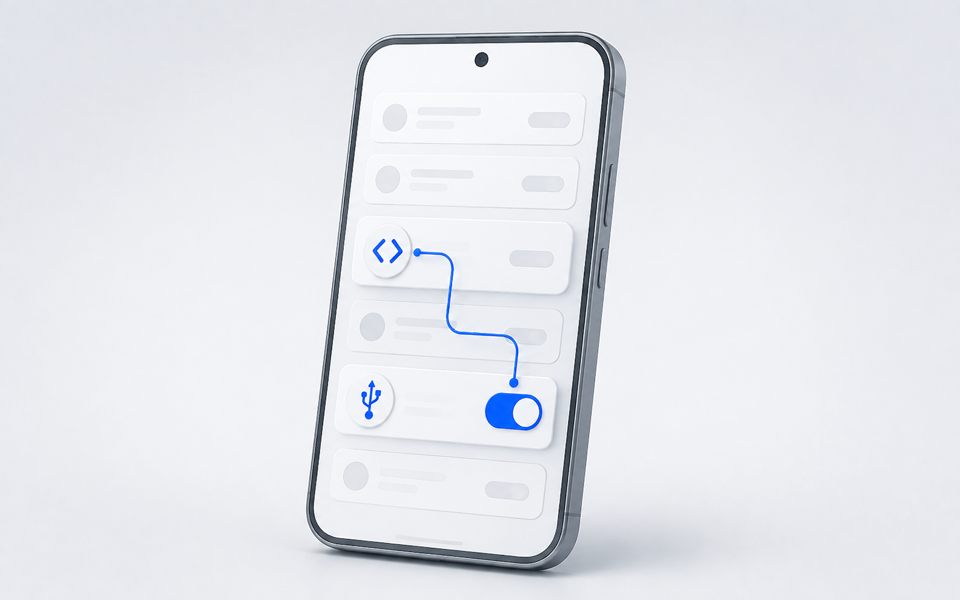
Enable USB debugging
USB debugging lets the browser read your phone screen and app information over the cable. In Settings, search for Developer options and enable USB debugging. It may also be under System or Additional settings.
-
3
Approve the phone prompt
Keep your phone unlocked, connect a data-capable cable, then press Connect. Allow USB debugging only on a computer you trust. When finished, disconnect here, then turn off USB debugging and revoke USB debugging authorizations in Developer options.
Connect Android phone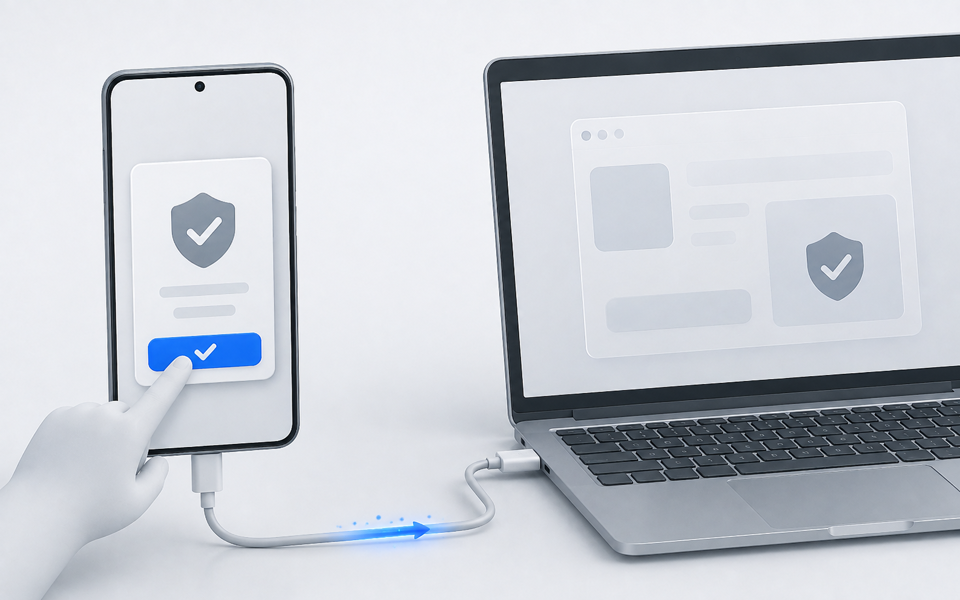


Check again
The browser is ready but the phone is still missing?
Open PopTrace in a standalone desktop Chrome or Edge tab over HTTPS or localhost.
USB is unavailable at this address
Configure HTTPS for PopTrace and reopen it through the secure URL.
If PopTrace runs on this computer, use its localhost address.
If PopTrace runs on another computer, changing the hostname is not enough; HTTPS must be enabled for that remote address.
Open PopTrace in a standalone tab
Embedded previews usually cannot access USB devices. Open the URL directly in a new Chrome or Edge tab.
This browser cannot run the USB scan
PopTrace currently targets Android. The online connection requires desktop Chrome or Edge; Safari, Firefox, and mobile browsers do not expose the required USB capability.
No connectable phone was selected
If your phone is missing from the device picker, run the connection check and verify the cable and USB debugging settings.
Keep the phone unlocked and enable USB debugging
Use a USB cable that supports data transfer
Reconnect the cable and approve debugging on the phone
On Windows, a missing device may require the phone maker's USB driver.
Another program is using the phone connection
PopTrace released this page's connection and retried, but another program is still connected to the phone. Follow the steps below; no command line is needed.
Close programs that may connect to the phone This includes Android Studio, scrcpy, phone assistants, and other PopTrace or WebADB pages.
Reconnect the USB cable Unplug it, keep the phone unlocked, reconnect it, and approve debugging on the phone.
Cannot find adb? Turn USB debugging off and on in Android developer options, then reconnect the cable.
The browser exposes USB access
This is usually caused by an embedded page, browser policy, or a managed device. Use a normal browser tab and review browser policies.
Close Android Studio and other phone-management tools
Related guides
How to Find Which App Is Causing Pop-up Ads on Android
Find which Android app is showing pop-up ads. Check notifications, recent apps and window ownership, then verify the source before removing anything.
Find Hidden Adware on Android: Apps and Permissions
Investigate Android apps behind pop-up ads, check display-over-other-apps settings, and understand blocked uninstall controls with PopTrace and manual checks.
Privacy and control
Device data stays local, and every action starts with you
The page connects directly to the phone you select and parses diagnostics in the browser. PopTrace requires no account and does not upload app lists, window records, device identifiers, or results.
- USB access is requested only after you press the connect button
- Phone actions run only after you press their buttons; force stop also asks for confirmation on the page
- Uninstalling must be confirmed again in Android's system screen