Android pop-up troubleshooting
Ads Keep Popping Up on My Phone: Android Troubleshooting
If ads keep popping up on your Android phone, first identify where they appear. For a website notification, change that site's notification permission. For ads outside the app you are using, identify the responsible app before removing it. For lock-screen ads, check notification and lock-screen settings. A pop-up is a symptom; it does not establish that your phone has a virus.
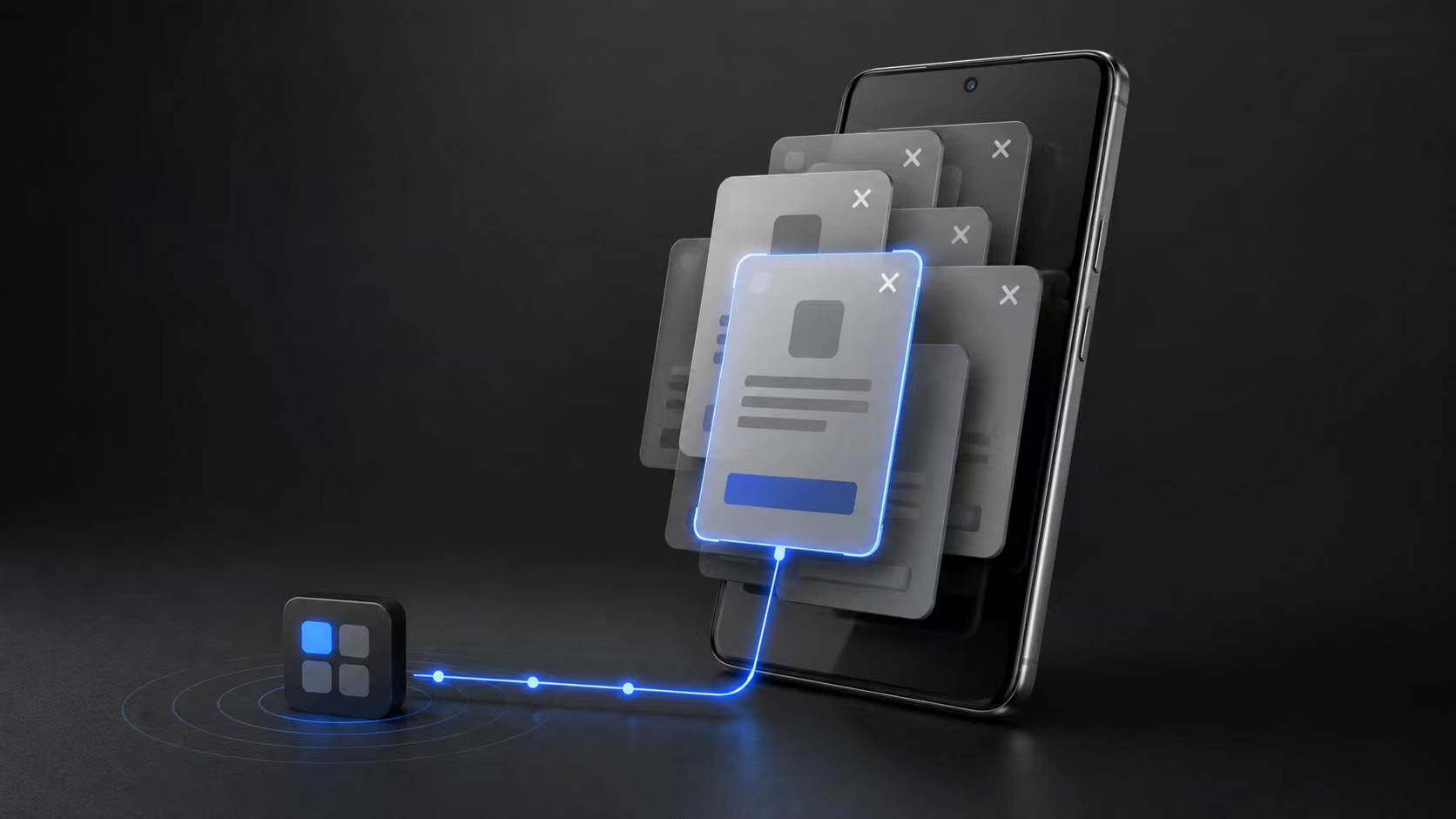
Choose the symptom that matches your phone
Before changing settings, note what you were doing when the ad appeared and whether it came back after you closed it. Ads every few seconds, ads after unlocking and ads inside a browser can have different sources. Change one thing at a time so you can check the result. You do not need to start by resetting the phone or installing a cleaner advertised by the pop-up.
Pop-up ads on the Android home screen or over other apps
An ad that covers the home screen or interrupts another app deserves a source check. Review recent installations and updates, and check recent apps for a recognizable owner. If that does not identify it, inspect the current window while the ad is visible. The app you happened to be using underneath the ad is not automatically the source. The same approach applies to repeated full-screen ads.
Ads on the lock screen or when unlocking
First check whether the ad is a notification, part of a wallpaper or lock-screen service, or a separate window that opens after unlocking. Review the corresponding settings and recently installed apps. Samsung, Motorola, Xiaomi and other manufacturers use different menus and features, so follow your model's support instructions. A product recommendation built into a lock-screen service may need that service's settings rather than a third-party app removal.
Chrome keeps opening on its own, or Google Play opens automatically
Check website permissions if the problem is a browser notification. If a different app is opening a web page or a Google Play listing, the browser or store may only be the destination. Look at what happened immediately before the redirect and compare recent activity. A PopTrace result showing Chrome does not, by itself, prove Chrome initiated the ad. Avoid repeatedly following a suspicious link while troubleshooting.
Ads in notifications, or only inside one app
For a notification, touch and hold it to identify the sender and open its notification controls. For website notifications delivered by Chrome, remove the unwanted site's permission. If ads appear only inside an app you deliberately opened, review its settings or choose an alternative. PopTrace is intended to help with unclear window ownership, not to remove every ad displayed by an app or website.
A practical order for stopping recurring ads
- 1
Identify the source before changing multiple settings
Use the symptom checks above. Write down any app or site you identify, plus the trigger and time. If the source is still unclear, follow the source-identification guide. PopTrace can inspect a visible window through an authorized USB connection from desktop Chrome or Edge, and show earlier app candidates for review.
How to Find Which App Is Causing Pop-up Ads on Android - 2
Change the matching permission or app setting
For a notification, review the sender's notification permissions. For a lock-screen feature, use its own settings. For an app you suspect is opening separate windows, review its details and try force stop before deciding whether to uninstall. Force stop does not delete the app; it may run again when you open it. Avoid disabling unfamiliar system components as a shortcut.
- 3
Check Play Protect and consider safe mode
Open Google Play, tap your profile, and check Play Protect. Google's Android support also recommends safe mode when a downloaded app may be causing a problem. Starting safe mode varies by manufacturer and can remove some home-screen widgets, so record your layout first. If the symptom disappears in safe mode, downloaded apps are a useful next place to investigate; safe mode does not tell you which app is responsible.
- 4
Test the original trigger after each change
Return to the activity that previously produced the ad, such as unlocking or returning home. Check whether the same symptom comes back. Google recommends removing recently downloaded apps one at a time and checking after each removal. Keep a list so you can reinstall apps that were unrelated. Intermittent ads may need longer observation than a single clean screen.
- 5
Escalate if the source remains unclear
If ads persist, record the exact symptom, device model, Android version and checks you tried, then contact the phone manufacturer's support. You do not have to begin with a factory reset. If support recommends resetting later, review backup and recovery options first. Neither a clean Play Protect result nor an incomplete window inspection guarantees that the underlying problem is resolved.
The ad notification disappeared: how do I find its sender?
If you dismissed an ad notification before checking it, Android notification history may help identify the sender. This is a phone-settings check; it does not require PopTrace or a computer.
- 1
Check whether notification history was already enabled
Open Settings > Notifications and look for Notification history, or search Settings for that name. Some phones do not offer it and menu names vary. On supported Pixel phones, history must be enabled before notifications are recorded; switching it on now will not recover earlier dismissed notifications.
- 2
Match the time and sender before changing permissions
If a record exists, compare the time, app name and any site address with the ad you dismissed. Google describes recently dismissed notifications and the last 24 hours, but the available record depends on the device. A Chrome entry may be a website notification; review the site in Chrome > Settings > Site settings > Notifications. Do not uninstall Chrome just because it delivered the notification.
- 3
If there is no record, prepare for the next occurrence
Enable history if the phone offers it and you want to keep future notifications. Otherwise wait for the ad to return, then touch and hold the notification to inspect its sender before dismissing it. Record the time and the visible app or site privately. History can contain message previews: review its privacy implications and turn it off when you no longer need it.
Notification history is not a log of every screen or pop-up. A full-screen ad or browser redirect may leave no notification entry. If an unexplained window is still visible, use the window-source investigation steps; PopTrace does not recover deleted notification history.
How to Find Which App Is Causing Pop-up Ads on Android
Google Pixel Help: notification history and recording requirements
Common questions about recurring Android ads
Why do ads keep coming back after I close them?
Closing the visible ad does not necessarily change the permission, service or app that produced it. Identify the source, change the relevant setting or review the app, then test again. A generic pop-up blocker in Chrome will not address every notification or app window on the phone.
Do I need to uninstall Chrome or Google Play?
Do not treat the destination of a redirect as proof of its source. Check website permissions and the activity preceding the redirect first. Removing or disabling a browser or store can disrupt normal use without identifying the app that opened the link.
Can I stop ads without a factory reset?
Often the first checks are narrower: remove an unwanted notification permission, change a lock-screen feature or remove an identified app. The correct action depends on the cause. Start with those checks and seek manufacturer support if the issue persists; no single method can promise to solve every case.
Sources and further help
The manual checks in this guide follow Google and Samsung support guidance. Menu names vary by Android version and manufacturer; use your phone maker's instructions when a setting differs.